Help Center Videos: Match the Format to the Customer’s Need
Use explainers for concepts and recorded demos for click paths. A practical workflow covers article selection, privacy, revisions, and tool costs.
Help center videos work best when their format matches the question a customer is trying to answer. A narrated explainer can make a complicated idea or sequence easier to grasp; a recording is better when someone needs to see each click in the product. Scrimba Explain turns an article link, PDF, pasted text, or screenshots into typed slides, diagrams, and narration. It doesn’t record a presenter or the product interface.
That distinction should guide support teams’ choices. Scrimba publishes Explain and lists commercial use under its Pro plan, so teams planning customer-facing videos should check the plan terms. For precise demonstrations, tools such as Guidde, Scribe, Arcade, and Loom capture product interactions in different formats. These products serve related but distinct needs: an explainer clarifies what something means; a recording shows how to do it.
Choose articles where video adds value
Video can make a long process or unfamiliar topic easier to follow, but it can’t compensate for missing or hard-to-find help content. Gartner’s survey of 5,728 customers found that only 14% of service issues were fully resolved through self-service. Only 36% of issues customers described as “very simple” were resolved that way, and in 43% of failed cases, customers couldn’t find relevant content. The practical starting point is a clear article; video is an added way to explain it.
Nielsen Norman Group’s study found that people were more likely to use video when content covered a long, multistep process or a topic they found unfamiliar or complicated. The group also cautioned that video shouldn’t be the only way to access information. Keep the article available as text so readers can scan, search, and use the instructions without playing a video.
Sort candidate articles by the kind of help they offer:
- Short click paths: For tasks such as exporting a report or resetting a password, use text and screenshots, or record the real interface if seeing the clicks matters.
- Concepts and explanations: A narrated explainer can clarify how permissions inherit, what a sync changes, or why an invoice was prorated.
- Setup sequences: Break implementation into stages and make a short explainer for each one. Smaller videos are easier to place beside the relevant instructions.
Match the tool to the format
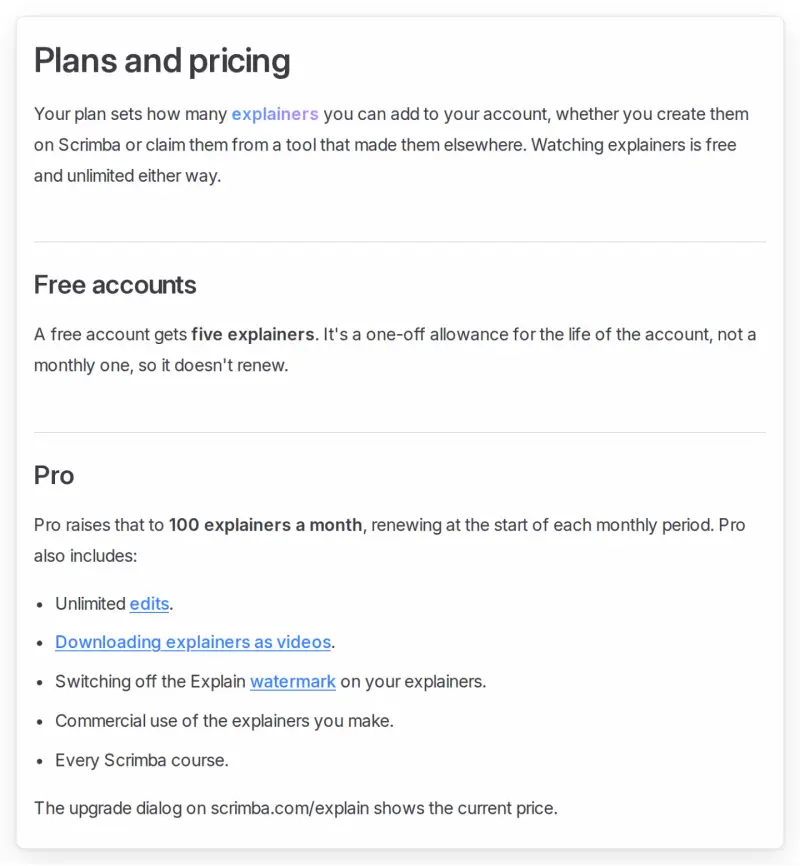
Scrimba Explain starts with source material and produces slides, diagrams, and narration. Its free account retains five explainers, allows three edits per explainer, includes a watermark, and doesn’t allow video downloads. Pro lists commercial use, unlimited edits, MP4 downloads, and watermark removal.
Other tools start from the customer’s need to see the interface or a person. Guidde records a user moving through a web app, with cursor effects; its free plan allows up to 25 how-to videos, while Pro is listed at $29 per creator and adds export, watermark removal, and a brand kit. Scribe turns a process into screenshot-based steps. Its Basic plan provides guides by link and embed; Pro Personal is listed at $35 per seat and adds branding and PDF and HTML export.
Arcade creates interactive click-through product demos. Its free plan includes one published demo, and Growth is listed at $50 per seat with MP4 and GIF export. Loom records a screen and voice: the free plan allows 25 videos per person, each up to five minutes at 720p; Business is listed at $18 per user and adds unlimited videos and downloads. Synthesia generates videos from a script read by an AI avatar. Its free plan offers 10 minutes per month with a watermark, and Starter is listed at $19 with downloads. These are the plan details reported on the vendors’ pricing pages.
Update options differ as well. Explain lets a user edit slides and narration, but downloaded MP4s are snapshots that need to be rendered again after an edit. Guidde lists version control on Enterprise. Loom supports rerecording, and its Business plan includes trimming and stitching. The cited plan information doesn’t state how Scribe, Arcade, or Synthesia handle changes to the underlying help content.
Build an explainer from an existing article
Start with one article or a single section. Nielsen Norman Group recommends several low-granularity videos, one for each step, instead of a single long video. That keeps each explainer focused and makes it easier to place beside the text it supports.
- Set visibility before you create the video. Scrimba’s guide says a new explainer starts as Public, which means it can appear in the community. For customer help, choose Unlisted before sharing or embedding it.
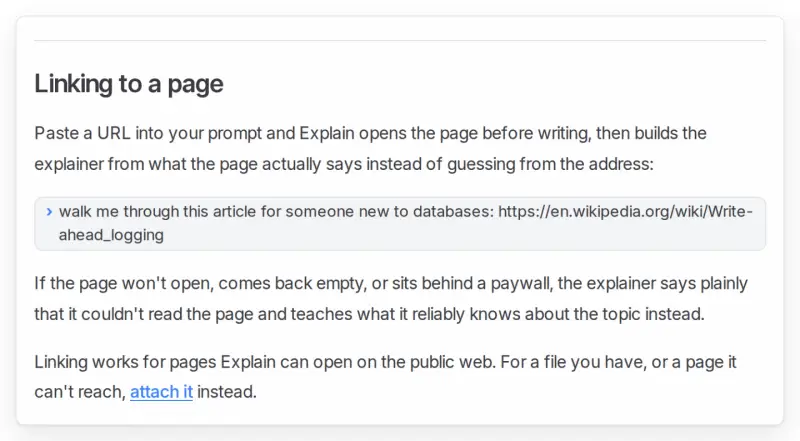
- Provide material Explain can read. For a public help page, paste its link; Explain opens the page before creating the video. For a knowledge base behind a login, save the article as a PDF and attach it. A Word draft can also be saved as a PDF.
- Add relevant screenshots. Two or three fresh images from a demo account can help customers recognize the interface. Use sample data rather than a customer’s workspace. Scrimba says uploaded pictures appear on slides without a “Generated image” tag.
- Ask for the idea the customer needs to understand. A prompt might ask Explain to show why permissions on a parent folder apply to subfolders, draw the inheritance as a flowchart, and keep the video under two minutes. Explain supports flowcharts, sequence diagrams, and state diagrams. A wide frame is suited to a help page.
- Check every slide and the narration. The full narration appears as a transcript below the player. Scrimba warns that Explain can make mistakes, so compare the output with the article and correct any errors. Free accounts get three edits per explainer.
- Embed the video beside the text it explains. Nielsen Norman Group found that videos placed within a section are more likely to be noticed. Copy the iframe from the player’s settings menu. Scrimba says viewers don’t need an account to watch an embedded explainer when it’s Unlisted or Public. The embed contains the player, so the article remains the text alternative.
Adapt PDFs and onboarding presentations
A long implementation guide is unlikely to work well as one video. Scrimba documents no attachment length limit, but teams should still divide the material into sections and check each result against the guide. Explain can also make a playlist: a series of lessons on one topic, planned as a curriculum. The playlist counts as one explainer, while each lesson has its own URL and embed code. That lets a lesson about connecting data sit on the help page for that task.
A live onboarding presentation offers two paths. Teams who want to keep the presenter’s voice can record narration in PowerPoint, then use PowerPoint’s video export to save an MP4. Without recorded narration, PowerPoint displays each slide for five seconds by default. Teams who want a fresh explanation can save the deck as a PDF and attach one section at a time to Explain. Scrimba documents PDF uploads, not PowerPoint uploads.
Using Explain from a ChatGPT draft
Support teams can request an explainer through Scrimba’s Explain Video Generator plugin in ChatGPT. Install it while signed in, then select it with @ in the chat containing the draft and ask for a video. The result appears as an explainer card. Scrimba’s documentation says the video is square unless the prompt asks for another format, and screenshots uploaded in the chat can be used on slides.
Connecting a Scrimba account saves each explainer as it’s created and counts it toward the account’s plan. Teams should review the plugin’s data notice before using chats about unreleased features: it says relevant chats and memories may be shared with the app to provide context. ChatGPT’s video options have also changed: OpenAI discontinued Sora’s web and app service on April 26, 2026, and its API on September 24, 2026.
Keep videos aligned with documentation
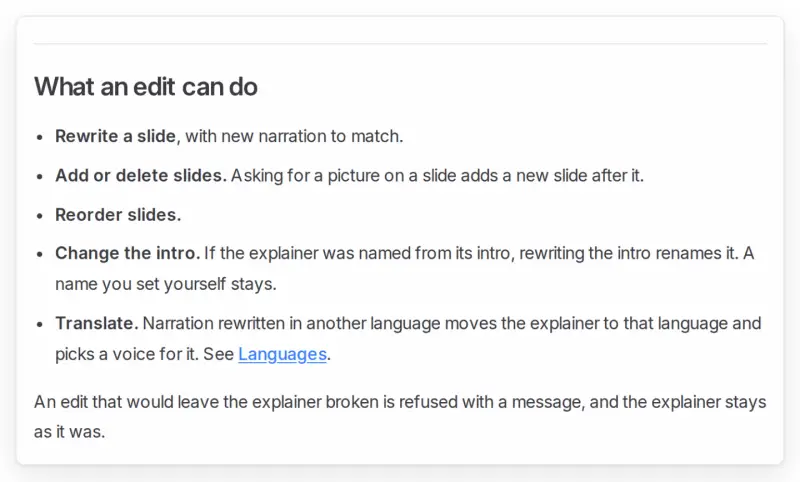
Explain doesn’t automatically sync videos when help pages change. Put the video review in the same work ticket as the article revision. An edit is a written request made below the player. Scrimba says an edit can rewrite a slide and its narration, add or delete slides, or change their order; slides not mentioned remain untouched.
For embedded explainers, the page loads the video from its link, so teams should check the embed after each edit. Scrimba’s documentation describes downloaded MP4s as snapshots: an edit retires saved versions, so teams must render a new file and replace the uploaded one. If a product release changes much of the article, a fresh explainer may be easier to review than a series of edits. In a Scrimba workspace, members can edit explainers moved into that workspace. Gartner’s guidance also points to a useful maintenance habit: give customers and support representatives a way to flag content that no longer works.
Plan for customer use and measurement
Scrimba lists commercial use under Explain Pro, alongside 100 explainers per month, MP4 downloads, unlimited edits, and watermark removal. Teams can try the free plan first: it keeps five explainers for life, with three edits each, but includes a logo watermark and no downloads. Explain can also create videos through ChatGPT; when a Scrimba account is connected, each one counts as it’s made.
For repeated onboarding across many accounts, reuse can keep the explanation consistent. Create one explainer per concept, embed it in the relevant help page, and send the same Unlisted link in welcome emails. Explain reports views and likes, but doesn’t provide completion tracking, data by viewer, or learning management system reporting. Teams that need to know which administrators finished onboarding can put an exported MP4 in a customer education platform that tracks completion.
When a different format is the better fit
Use a recording when customers need to follow exact clicks in the real product. Guidde records workflows in web apps, Scribe produces screenshot guides, and Loom captures the screen with a person’s voice. Arcade is suited to a demo customers can explore themselves. For a presenter-style video, HeyGen’s free plan lists three watermarked videos per month, each up to one minute, and more than 500 ready-made presenters.
The useful choice is the one that makes the task clearer with the least friction: text for quick reference, a recording for visible steps, and a narrated explainer for the reasoning or sequence behind them. Keep each video focused, place it beside its article, and include the update in the same review cycle as the documentation.