Accountants Can Explain Tax Rule Changes to Clients With One Reviewed Video
A shared explainer can clarify a tax change for many clients. Build it from IRS guidance, keep client data out and have a tax professional review every slide.
A single, carefully reviewed video can give clients a clear first explanation of a tax change and spare accounting teams from repeating the same overview in dozens of calls. The practical case is strongest when the change affects many clients in the same way: build the explainer from IRS material, have a CPA or enrolled agent check each slide, then share one link through the firm’s regular client alert.
The video should explain the rule, not a client’s circumstances. Leave names, return figures, Social Security numbers and other client details out of the video tool. Individual questions still belong in the firm’s normal client service process.
Why a shared video can help
A new filing threshold or reporting requirement often prompts similar questions across a client list. A general explainer gives everyone a consistent starting point, while staff can reserve conversations for clients whose circumstances require more attention. That division may be especially useful for small firms with limited time during busy periods.
There’s some research support for using video to teach financial concepts. In an experiment involving the RAND American Life Panel, Lusardi and colleagues compared a brochure, an interactive tool, a written story and a video story. Participants who saw the video scored better on financial literacy than those who read the written story, according to the researchers’ working paper. That result concerns a financial concept, rather than tax-rule communication specifically, but it suggests that a visual explanation can help make unfamiliar material easier to absorb.
Accounting firms are already using AI to shape client education materials. The Journal of Accountancy described a CPA using ChatGPT to turn completed analysis into one-page PDF overviews. His guidance was that “AI is a starting point, not the final answer.” The publication also reported that client trust depends on how firms handle data and ensure people review and verify AI output. A video follows the same principle: automation can help produce a draft, but a qualified reviewer needs to check the substance.
Choose a format that fits the message
The first choice is whether viewers need to see a presenter. An avatar or a partner speaking on camera may suit a welcome message or a sensitive update, where personal presence matters. For a straightforward explanation of a rule, narrated slides, diagrams and text may be enough.
Scrimba Explain creates narrated slides from an IRS PDF or a written summary, without a presenter. Its product documentation describes the slides as typed content rather than a screen recording. HeyGen can create scenes from a PDF, with an optional avatar. Synthesia can build from a script, template or PowerPoint, and paid plans accept documents. Canva and PowerPoint offer different routes: Canva provides design templates and AI features, while PowerPoint lets a presenter record narration over an existing deck.
TaxStory serves a separate purpose: it makes an individual walkthrough from a client’s completed return. That uses personal tax information and calls for a different process from a general explainer. The distinction matters when comparing tools. A platform built for one client’s return isn’t interchangeable with one that turns a public rule document into a reusable presentation.
| Tool | Format | Input | Free access described | Client-use details described |
|---|---|---|---|---|
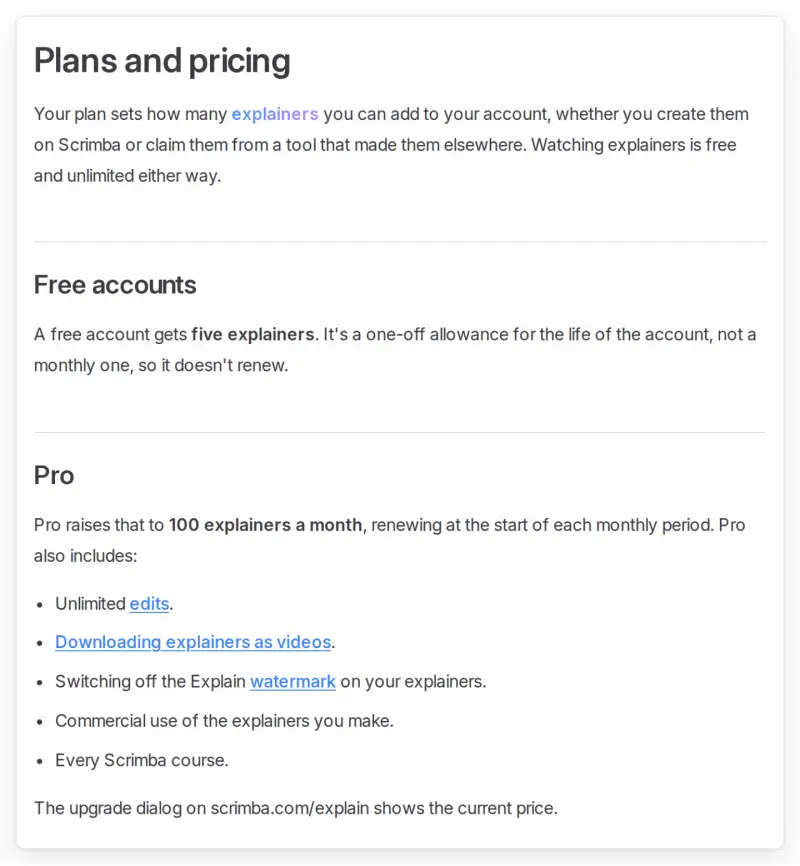
| Scrimba Explain | Narrated slides, diagrams and images; no presenter | IRS PDF or written summary | One explainer without an account; a free account stores five for life, allows three edits each and includes a watermark. Video downloads aren’t included. | Pro lists commercial use, watermark removal and 100 explainers a month. |
| HeyGen | Avatar presenter or narrated scenes | Script, prompt or document | Three videos monthly, up to one minute each, with a watermark | Creator is listed at $29 a month and removes HeyGen branding. |
| Synthesia | Avatar presenter | Script, template, PowerPoint or, on paid plans, a document | Basic includes 10 minutes a month with a Synthesia watermark. | Starter adds downloads and removes the Synthesia logo. |
| Canva | Templates, stock media and AI-generated elements | A design created in Canva | Free plan includes up to 20 AI uses. | Pro is listed at US$144 a year for one person. |
| PowerPoint | Slides with the presenter’s recorded voice | An existing presentation deck | Included with PowerPoint | No extra tool is required. |
| TaxStory | Personalized walkthrough of an individual return | Completed return | 14-day free trial | Starter is listed at $49 a month for 10 return videos. |
These plan details were reported from vendor pages checked on October 23, 2026. The figures and features may change, so firms should confirm current terms before choosing a service. Sources include HeyGen pricing, Synthesia pricing and its video creation documentation, Canva pricing, Microsoft’s PowerPoint instructions, TaxStory and Scrimba’s Explain plan details.
Keep client information out of the workflow
A general rule explainer can be made from material that doesn’t identify a client. That’s a meaningful boundary for tax preparers: Section 7216 restricts how taxpayer information may be used or disclosed. The IRS explains the limits and exceptions in its frequently asked questions. Uploading a completed return to an outside video service brings client information into the process and needs to be handled under the firm’s established procedures and client permissions.
There is a separate provision for certain general client communications. Under 26 CFR 301.7216-2(n), a preparer may compile client names and contact details solely to send tax information or general business and economic information for educational purposes. A general rule update may fit that kind of communication, but firms should check their own procedures before sending it.
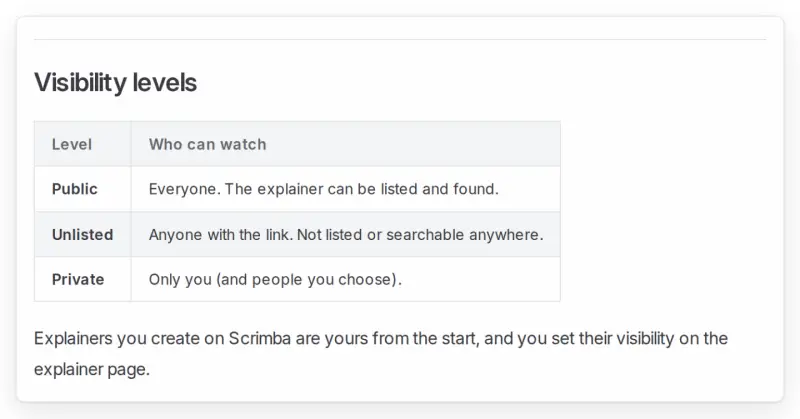
Video settings also deserve attention. Scrimba says a new explainer created while signed in starts as Public, which makes it discoverable in the community. Select Unlisted in the composer before creating the first slide. That setting keeps the video accessible by link without listing it for general discovery.
For the ChatGPT connection, the product listing warns that relevant chats and memories may be shared with the app to provide context. Keep the drafting conversation free of client information. When embedding an explainer, the player displays the video itself; the associated warning and transcript aren’t shown in the embed, according to the transcript documentation. Add a clear note beside the player that the material is general information, not guidance for an individual situation.
Build the explainer from the source document
The article’s example is the 1099 reporting threshold. The 2026 instructions for Forms 1099-MISC and 1099-NEC state that for tax years beginning after 2025, the minimum rises to $2,000 and may be adjusted for inflation beginning in calendar year 2027. That gives a firm a concrete change to explain, while still requiring a reviewer to confirm how the rule applies to the intended audience.
1. Focus on one change
Keep each video to one rule change and work from the underlying IRS instructions rather than a software vendor’s interpretation. A firm’s own written summary can also be used; if it’s in Word, save it as a PDF first. Scrimba’s attachment guide lists PDFs, images and text files as supported inputs.
2. Set access before creating slides
Open Scrimba Explain and set visibility to Unlisted in the composer before generating the video. Check the setting before adding the document, so the explainer doesn’t begin with a broader audience setting than intended.
3. Give the tool a precise brief
A useful prompt names the audience, the change and the questions the video should answer. For example: “Explain this change for small-business clients who pay contractors. Cover what changed, which payments it affects, and what they should do before year-end. Use plain English, aim for about two minutes, and avoid advice for any individual situation.” Clear boundaries help keep a general explainer from implying that every viewer has the same obligations.
4. Have a tax professional check every slide
Review the slides and the full narration against the IRS document. Scrimba itself warns that Explain is AI and can make mistakes; its transcript view lets a reviewer read the narration as they would a memo. Confirm the threshold, effective timing, affected payments and any instructions about next steps. If something is wrong or unclear, edit it and review the changed version again.
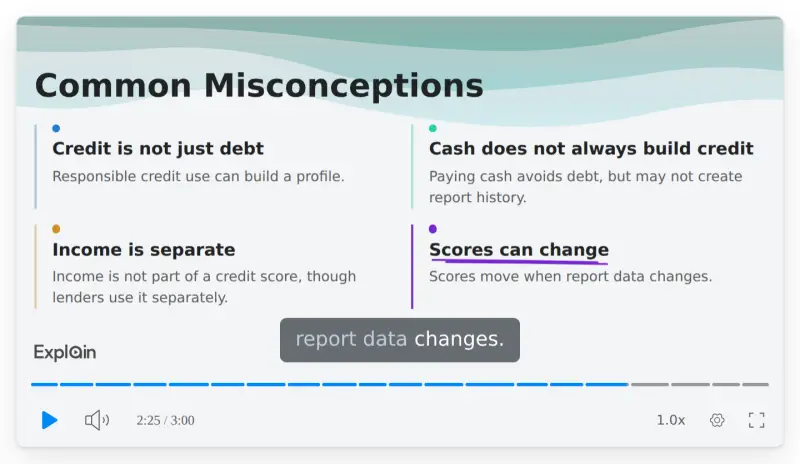
The free account allows three edits per explainer. Scrimba’s plan information describes how to request a change beneath the video player. A published finance example, “Credit: From Trust to Scores,” shows the kind of flowcharts and information cards that can help viewers follow a process or spot common misreadings.
5. Share the reviewed version
Firms can place the unlisted link in a client alert or embed the player on a firm news page. Viewers don’t need a Scrimba account to watch, according to the embedding documentation. For clients who prefer Spanish, create a separate Spanish explainer: Scrimba’s editing guidance says that changing language through a translation edit changes the explainer itself.
Pro users can download an MP4 at 1080p and 60 frames per second by default, with an optional VTT subtitle file. Export is available for public or unlisted explainers. Since editing retires saved versions, download only after the reviewer has approved the final video.
Using ChatGPT and deciding when another tool fits
The Explain Video Generator can turn a memo or other text into an explainer from inside ChatGPT. After setting up the app, a user can ask for a video; ChatGPT returns an explainer card that opens on Scrimba. These videos are unlisted and square by default. Connecting a Scrimba account saves each video as it is made and counts it toward the account’s plan. The same data rule applies: draft from IRS guidance or a general memo, not from a client file.
HeyGen also offers a ChatGPT app, with avatar video generation tied to a HeyGen account and its credits. Firms choosing either workflow should consider what information is present in the chat and confirm the finished material before sharing it.
A general explainer won’t suit every communication. A personalized walkthrough of one client’s return involves client data and belongs within the firm’s process for handling that information. A partner speaking to camera may be more effective when the relationship itself is part of the message. And if a firm already has a presentation deck, PowerPoint can turn it into a video with the presenter’s recorded narration using File > Export > Create a Video.
The useful test is simple: if the same explanation applies to many clients, one reviewed video may give the firm a consistent way to communicate it. If the question depends on an individual return, the conversation needs to stay individual. A clear source, careful review and a boundary around client data make the shared format more useful to both staff and clients.