ChatGPT for Teachers and Lesson Videos: Plugin Access, Privacy and Classroom Options
ChatGPT for Teachers has no built-in video maker. Teachers can plan lessons there, but making a video depends on plugin access or an external tool.
ChatGPT for Teachers can help educators plan a lesson, but it doesn’t create a video on its own. Its listed features include image generation, file uploads and apps, while video creation requires a separate tool. For teachers considering Scrimba’s Explain Video Generator, the key question is whether their school’s workspace allows the plugin. OpenAI and Scrimba don’t document its availability in ChatGPT for Teachers, so a teacher may need to check with the workspace administrator or use a personal account or Scrimba’s site.
That distinction matters for classroom use. The workspace’s privacy protections apply to ChatGPT for Teachers, while a connected plugin may receive relevant chat content and follow its own data terms. Teachers can use the workspace to develop a lesson outline, then carry only that material into a video tool and check the result against the teaching source.
What ChatGPT for Teachers offers
OpenAI launched ChatGPT for Teachers on November 19, 2025, as a free workspace for verified educators at accredited US K–12 schools and districts. Eligible users include teachers, staff, school leaders and district administrators. Verification runs through SheerID using a school or district email; educators can then create a workspace or join one associated with their district’s domain. A workspace can’t combine educators from different districts.
The service is free through June 2028. OpenAI says it may introduce or adjust pricing after that date, with advance notice. The plan is intended for educators, not students; OpenAI’s help center says student accounts and student-facing features may come later.
OpenAI says information shared in ChatGPT for Teachers isn’t used to train its models by default, as with its Business customers. The company describes the workspace as built to protect student data and help schools meet FERPA requirements. School and district leaders can claim their domain and use role-based access controls and single sign-on.
The listed capabilities include file uploads, apps, file search, deep research, voice mode, image generation, data analysis, memory, custom GPTs and shared workspaces. Those tools can help teachers prepare materials and organize work, but the feature list doesn’t include video generation.
Video creation requires another tool
ChatGPT for Teachers has no built-in video maker. OpenAI’s Sora web and app experiences were discontinued on April 26, 2026, followed by the Sora API on September 24, 2026, according to the company’s Sora help page. Teachers who want a narrated explainer therefore need a separate service.
ChatGPT can still support the preparation stage: drafting a lesson outline, identifying vocabulary, shaping an opening explanation or writing an exit-ticket question. A teacher can then use that outline in a video service, review the finished material and decide how to share it with students.
Plugins depend on workspace settings
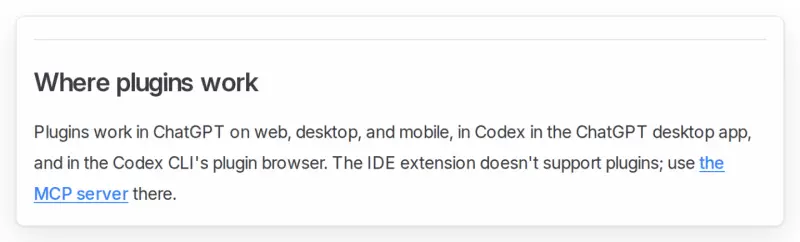
ChatGPT for Teachers supports plugins, but workspace owners and administrators control which ones members may install. OpenAI has confirmed that its K–12 Educator plugin is available in district deployments of both ChatGPT Edu and ChatGPT for Teachers. OpenAI Academy has also published a video on using plugins with ChatGPT for Teachers and a K–12 workspace settings guide, updated October 8, 2026.
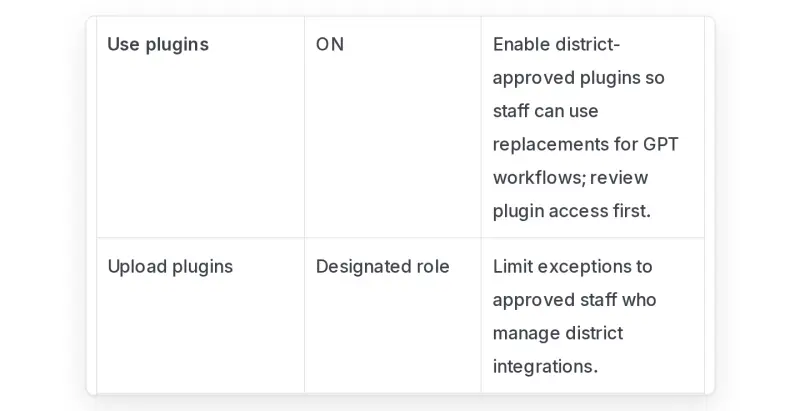
The guide advises administrators to assess each integration’s data access, actions and owner before approving it. That review is relevant to any third-party plugin, including Explain Video Generator. OpenAI’s general plugin documentation describes some defaults for Business, Enterprise and Edu workspaces, but doesn’t state which default applies to ChatGPT for Teachers. Scrimba’s documentation says its plugin works in ChatGPT on web, desktop and mobile, without specifying workspace types.
To check access, teachers can open Plugins in their workspace and search for Explain Video Generator. “Install plugin” indicates it’s available to install; “Disabled by admin” means the workspace has blocked it. A plugin missing from the directory may not be offered for that workspace or plan. If access is blocked or unclear, the workspace administrator is the person who can clarify the setting.
Custom GPTs are also due to change. OpenAI says they are scheduled to retire across ChatGPT plans on December 11, 2026, with GPT instructions moving to a skill inside a plugin. OpenAI Academy’s K–12 guide says users can no longer create new GPTs from October 26, 2026. Teachers who rely on a GPT for lesson planning may need to review how its instructions will carry over.
What teachers should consider before connecting Explain
As of October 23, 2026, neither OpenAI nor Scrimba has documented whether Explain Video Generator is listed or permitted in ChatGPT for Teachers. Scrimba publishes the plugin, and its public ChatGPT documentation doesn’t name the Teachers workspace. Availability therefore depends on what a district’s administrators make available.
Before approving or using a third-party plugin, educators and administrators should consider what information it receives and where its output is stored. The plugin listing says: “When connected to Explain Video Generator, ChatGPT may share relevant chats and memories with this app to help provide context for your requests.” OpenAI says information sent to a connected third-party service is subject to that provider’s own storage, processing, privacy and data-residency terms.
Scrimba says explainers made through ChatGPT are unlisted. If a teacher connects a Scrimba account, each explainer is saved there as it’s made and counts toward that account’s allowance. Scrimba doesn’t publish a compliance statement for Explain, so educators shouldn’t describe it to their school as having been reviewed for FERPA. OpenAI’s protections for the workspace don’t establish how a plugin provider handles information it receives.
For a district review, the relevant materials include the plugin listing, its data notice, details about where explainers are saved, and the provider’s terms. Student names, grades and individual learning plans should be kept out of any route used to make a video.
Three ways to make a lesson video
Teachers have three possible routes: use Explain in a ChatGPT for Teachers workspace if administrators allow it, use the plugin in a personal ChatGPT account where the plan and region permit, or create the explainer directly at Scrimba’s site. Only the latter two routes are documented by Scrimba as available options; access inside a Teachers workspace remains unconfirmed.
| Consideration | Teachers workspace with plugin | Personal ChatGPT with plugin | Scrimba site |
|---|---|---|---|
| Who controls access | Workspace administrators | User, subject to plan and region | User |
| Use of app data for model training | Not by default in the workspace | Possible on Free, Plus, Go and Pro if “Improve the model for everyone” is on | Not a ChatGPT session |
| Quiz and difficulty options | Not documented | Plugin quiz rules aren’t documented; no depth levels | Can include a self-check quiz; offers four depth levels |
| Video frame | Square by default; request wide | Square by default; request wide | Wide by default, or tall with “Make for mobile” |
| Visibility when created | Unlisted | Unlisted | Public when signed in; set to Unlisted first |
| Scrimba allowance | Each explainer saved to a connected account counts | Each explainer saved to a connected account counts | Each explainer counts; a course counts as one |
| Student information | Keep it out | Keep it out | Keep it out |
The comparison reflects OpenAI’s connected apps guidance and Scrimba’s documentation on teaching styles, quizzes, video formats and creating an explainer.
Explain is free to start. Scrimba says a user can keep one explainer without an account, five on a free account for life, or 100 per month on Pro. ChatGPT can create as many explainers as the user requests, but connecting a Scrimba account means each one counts against its allowance as it’s made. A free account includes three edits per explainer but doesn’t allow MP4 downloads; slides carry an Explain logo unless Pro removes it. Teachers using a personal ChatGPT account should also check their school or district’s rules for AI tools and protected information.
A practical classroom workflow
A straightforward process keeps lesson planning in the Teachers workspace and sends only a finished outline to the video service.
- Draft the lesson plan. Attach a chapter or other teaching material and ask for an outline for a short opening video. Request a clear objective, three key terms, a visual idea and a question students can answer at the end. Leave student information out.
- Create the explainer. If Explain is available in the workspace, request a wide video for a classroom screen. The plugin returns an explainer card, and “Watch explainer” opens the result on Scrimba. If the plugin isn’t available, save the outline or chapter as a PDF and upload it at Scrimba’s Explain site. Set visibility to Unlisted before creating the video; ask for a quiz if a brief self-check would help.
- Check the material. Watch the video and read its transcript alongside the chapter. Scrimba warns that Explain is AI and can make mistakes. A teacher should check claims, terminology and any diagrams before sharing the result.
- Share with students. Scrimba’s “Copy fullscreen link” opens the lesson with the player filling the page, a format the company says suits classroom sharing. Students can watch without accounts. Pro users can also download an MP4, 1080p by default.
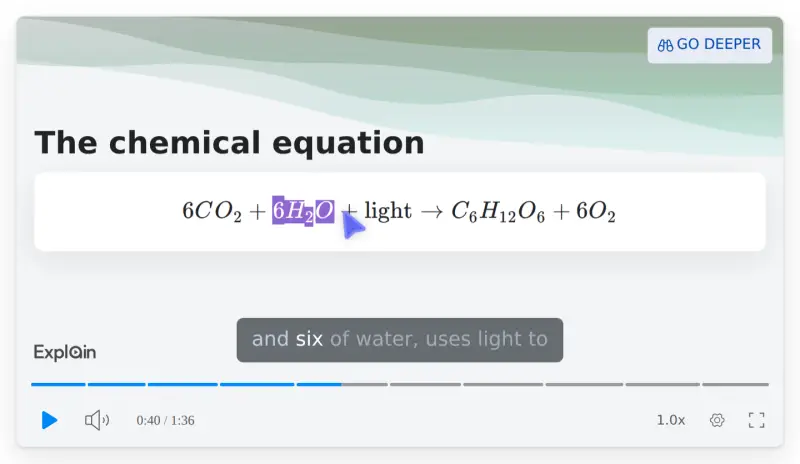
Scrimba’s education example, How Photosynthesis Works, shows one possible result: a slide displays the chemical equation in notation rather than as plain text.
When another format is a better fit
A narrated explainer suits a short concept introduction, but it won’t meet every classroom need. Explain’s quiz is a brief check scored for each viewer; it isn’t an exam, and the teacher sees views and likes rather than individual results. For graded responses, an interactive-video service such as Edpuzzle or the school’s learning management system is a better fit. Edpuzzle says its basic teacher plan will always be free.
When the goal is a slide deck, OpenAI’s ChatGPT for Teachers page points to creating presentations with Canva in ChatGPT. When students need to see a physical technique, such as a lab procedure or a physical education drill, footage of a person performing it may communicate more clearly than an AI-generated explainer.
For a project that draws on many different sources, Google’s Gemini Notebook can take up to 50 sources per notebook on its free tier, according to Google’s help page. That may suit a lesson built from several readings and a podcast, while Explain is aimed at turning material into a narrated presentation.
What educators should take away
ChatGPT for Teachers can support the planning behind a lesson video, but it doesn’t supply the video generator. Explain Video Generator may be available through a workspace plugin, though its status in Teachers workspaces isn’t documented and administrators control access. The practical next step is to check the plugin directory, confirm the workspace’s rules and review the plugin’s data terms. Whatever tool a teacher chooses, using a clean outline, excluding student details and checking the finished video against its source are sensible steps before sharing it with a class.