Choosing a Multilingual Training Video Workflow: Explainers, Translation or Dubbing
Choose a workflow based on your source video and sharing needs. Each language version still needs a fluent reviewer who knows the work.
The main decision in multilingual training is how learners will access each version. If every language needs its own link, create a separate explainer for each one. If your team only needs separate video files, translating one explainer in sequence may be simpler, though editing replaces its saved versions. And when the training already features a filmed presenter, dubbing can retain the footage and speaker. Each route calls for a fluent reviewer who understands the work.
These choices affect more than production time. They determine whether learners can return to a stable version in their language, how much editing and export capacity a team needs, and how easily updates can be kept aligned. The details below reflect product documentation and listings checked on October 23, 2026; the cited product pages describe their own features and limits.
Start with the learning material and sharing plan
A written procedure, onboarding guide or slide deck can serve as the basis for separate narrated explainers. Scrimba Explain accepts PDFs, text and images. A Word document can be saved as a PDF, and a Google Slides deck can be printed with its notes. Teams should remove details that apply only to a particular site or country before creating language versions.
For each language, Explain builds the lesson from that same source document. Its language documentation says the output can include translated slide titles, slide text and narration. Since each version is generated afresh, the wording may be natural in its language, but the slides can divide or combine steps differently. A reviewer should compare the result with the source procedure rather than assume the slide sequence will match another version exactly.
That route creates a distinct explainer and link for each language. It fits learning platforms, shared drives or other settings where learners need a stable version to revisit. Use consistent filenames, such as “Forklift pre-shift check (ES-MX),” so staff can identify the right version.
When the source is already a recording, dubbing tools can replace the speech while retaining the video. This may be a better fit when the trainer’s face, demonstrations or camera footage matter to the lesson. The two formats serve different production needs: a document based explainer generates slides and narration from written material; dubbing adapts a recorded performance.
Why language access affects training
Training materials work only when employees can understand them. OSHA’s Training Standards Policy Statement, dated April 28, 2010, says required training “must be presented in a manner that employees can understand.” It adds that when an employee does not speak or comprehend English, instruction must be provided in a language the employee can understand. The statement also cautions that having training records does not establish that employees understood the material.
A video in a learner’s language can make instructions more accessible, but it cannot establish comprehension by itself. Employers and educators still need to consider whether the learner can follow the explanation and apply it. For procedures involving warnings, equipment or job specific terminology, review by someone familiar with both the language and the work is especially useful.
Language needs vary across learners. U.S. Census Bureau estimates for 2018–2022 identified Spanish, Chinese and Tagalog as the most commonly spoken languages at home in the United States other than English, at 61.1%, 5.1% and 2.5% respectively. The Census Bureau also reported that 58.3% of Spanish speakers aged 18 to 64 speak English “very well.” These figures offer context for planning, but an organization’s workforce or learner population may have different needs.
Four production routes and their tradeoffs
| Route | Starting material | Language access | Main limits | Review |
|---|---|---|---|---|
| Separate Explain version for each language | PDF, text or images | Each version has its own link | One explainer per language; downloads require Pro | Review every version |
| Translate one Explain version in sequence | A completed explainer | The hosted link displays the latest language | Each translation uses an edit; downloads require Pro | Review and save each language before the next edit |
| HeyGen video translation | Recorded video or supported link | One output per language | Uses 4, 6 or 10 credits per minute, depending on mode | Proofreading is available on specified paid plans |
| Synthesia translation or dubbing | Synthesia video for translation; any video for dubbing | Translations share a folder and language switch | Translation requires Enterprise; dubbing uses plan credits | Transcript review is available on Enterprise |
For a written standard operating procedure that needs a separate link in every language, separate explainers make the versions easier to locate and maintain. For a team that needs downloadable files and can work through languages one at a time, translating a single explainer may use fewer explainer slots. For a filmed trainer whose delivery is part of the lesson, consider dubbing.
Building separate explainers from one document
Start with the most carefully reviewed version. Create it from the source document, check its steps and terminology, and make corrections before using the same source to generate other languages. Later versions begin again from the document rather than inheriting edits made to the first explainer.
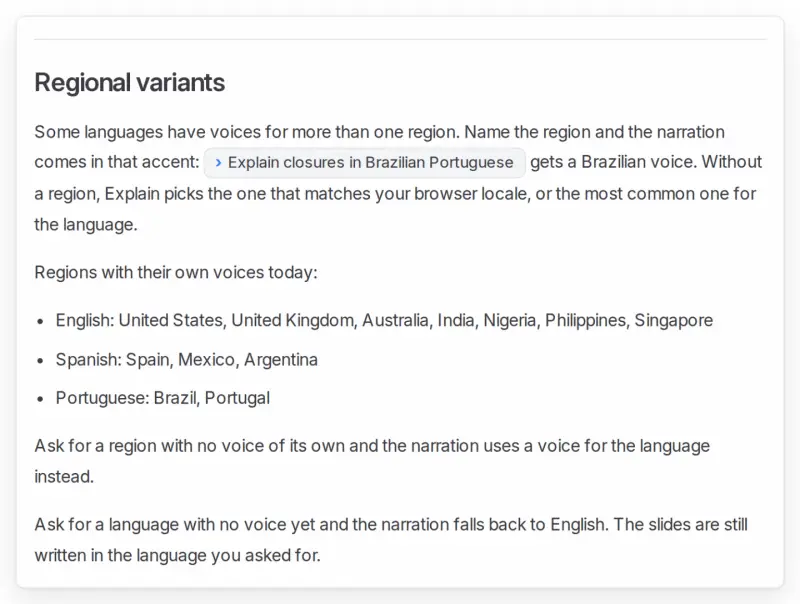
When requesting a language, name it directly or write the prompt in that language. Specify a region where it matters: Explain lists regional voices for varieties including Mexican Spanish and Brazilian Portuguese. Keep essential details explicit in the request. For example, a team might tell the tool to preserve every step, number and warning in order, retain required technical terms, and finish with a quiz on specified checks.
Check visibility before creating company material. According to Scrimba’s documentation, a new explainer made while signed in starts as Public and is listed in the community. Choose Unlisted or Private when the material should not be publicly listed. Consistent naming also helps learners find the version intended for them.
Separate generation gives each language its own link, but it also means the versions are independent. If the underlying procedure changes, teams must update each one. That maintenance cost deserves attention when choosing how many languages to publish and how frequently the source material changes.
Translating one explainer and downloading in sequence
Explain’s Translate edit changes the language of the explainer and retires its saved video versions, because those downloads no longer match the edited lesson. The hosted explainer and any embed show the latest language. This workflow therefore suits teams that need files for each language but do not need every version available at a separate, persistent link.
The sequence is straightforward: finish and review the first language, set the explainer to Unlisted if needed for export, download the MP4 and subtitle file, then apply a translation edit and review the result before downloading again. The export documentation says Pro is required to download. MP4 output defaults to 1080p, and subtitles are available as a .vtt file under Options.
Each translation counts as an edit. A free account allows three edits per explainer, and those edits also cover corrections. That means a team may have fewer than three translation edits available if it needs to fix slides. Download each reviewed version before changing the language again, since the next edit retires the saved versions.
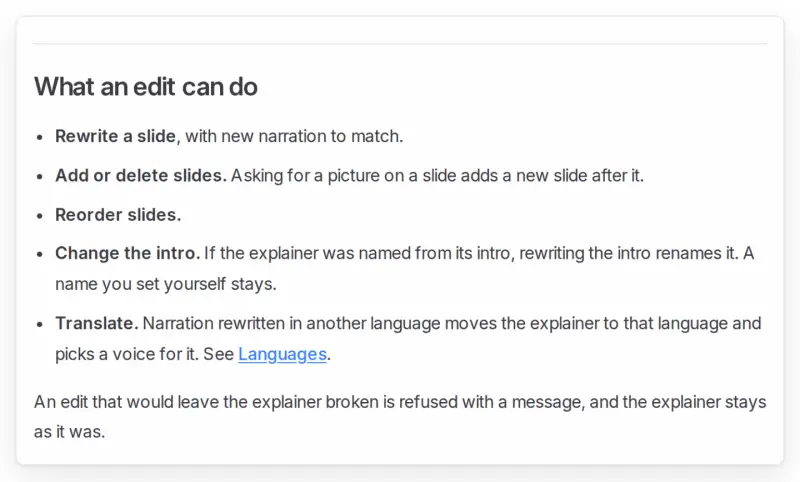
There is another review point: the documentation describes the Translate edit as rewriting narration. Check that the slide text has also been translated before exporting. A translated voice paired with text in the previous language can leave learners with two inconsistent versions of the lesson.
Account limits and team access
Scrimba’s plans page says a free account can keep five explainers for life; without an account, one explainer can be kept. Pro allows 100 explainers a month and adds downloads and unlimited edits. It also removes the watermark, which is on by default, and includes commercial use of explainers.
A five language onboarding lesson made as separate versions uses all five explainers in a free account. That account still cannot download the videos. Translating one explainer in sequence uses fewer explainer slots, but its three free edits may cover at most three translations after the initial version—and fewer if corrections are needed. Teams should include export requirements and expected revisions when estimating which plan fits.
Explain is also available through a ChatGPT listing. Its listing describes creating videos from supplied material, while Scrimba’s documentation says explainers made with a connected account are saved and counted when created. Before attaching internal material through that route, review the listing’s data notice, which says ChatGPT may share relevant chats and memories with the app to provide context.
In Scrimba workspaces, documentation says members can edit a workspace explainer and change its language and voice, while only the creator and administrators can export it. That division matters for teams where subject experts review content but a smaller group manages the final files.
Review every language against the source
Every language version needs review by someone fluent in that language who also understands the task. Scrimba cautions users that Explain is AI and can make mistakes. A practical review compares each slide and narration with the source and checks the points most likely to affect safe or correct performance:
- Specialist terms: confirm that equipment names and workplace terminology use the expected terms.
- Numbers and units: verify that weights, temperatures, pressures, dates and other measurements remain accurate.
- Warnings and instructions: check that prohibitions and stop instructions retain their meaning and force.
- Slide text and narration: make sure both convey the same instructions in the intended language.
- Subtitles: read the .vtt file in context, including timing and line breaks.
For safety training, the source recommends sign-off from a qualified person as well as language review. If the source procedure changes, teams must revisit every version. With separate explainers, each one needs its own update; with a translated-in-sequence workflow, editing replaces saved versions, which then need to be rendered again.
Language coverage and recorded-video tools
Scrimba’s language documentation lists 33 languages with native narration. The ChatGPT listing advertises “40+” languages, but the documentation names 33 with a native voice, so teams should plan around the documented voice list. English, Spanish and Portuguese include regional options. When a region has no distinct voice, the system uses a voice for the broader language. When a requested language has no voice, narration falls back to English even if the slides use the requested language. That may not meet the needs of a learner who must hear instructions in that language.
For existing footage, HeyGen accepts MP4, MOV and WEBM files up to 5 GB, as well as YouTube or Google Drive links. Its video translation feature can retain the original speaker’s voice and offers up to 10 target languages per job. Audio Only costs 4 credits per minute; Speed costs 6 and Precision costs 10, with the latter modes adding lip sync. HeyGen recommends trying one language first to assess quality.
Synthesia offers two different options. Its video translation feature, available on Enterprise, translates the script and on-screen text of a Synthesia video while retaining its avatar and design. The language versions share a folder and a language switch in the player. Its AI Dubbing feature accepts other video files or YouTube links and supports “130+ languages.” Lip sync costs twice the credits and is not available on the Basic plan. Transcript review is available on Enterprise.
These tools have distinct capabilities. Scrimba Explain builds lessons from documents but does not offer avatars, voice cloning, SCORM or completion tracking. Teams choosing a production route should weigh those requirements alongside the language workflow, access model and review capacity.
A decision that affects maintenance as well as production
Choose separate explainers when each language needs a lasting link and independent file. Translate one explainer in sequence when downloadable files are enough and the team can manage edits and exports in order. Dub a recording when the trainer’s filmed presentation should remain central. In every case, set access before sharing, check the translated text and audio together, and assign a fluent reviewer for each language. The workflow that fits today’s training also needs to support its next revision.