Google Slides Video Options: Recording, AI Narration and Explainers
Choose between recording your own narration, having Google Vids read notes or creating a new lesson from a PDF. Each route has different limits and review needs.
Turning a slide deck into a video means choosing what the narration should do. Google Slides’ built-in recorder preserves your voice and presentation; Google Vids can read a generated script or your speaker notes; an explainer tool can use the deck as source material for a newly written lesson. That distinction matters for educators and trainers: a thin deck may need explanation, while a carefully scripted presentation may only need a voiceover.
There are also practical differences in access, length and output. Google’s recorder is limited to certain work and school accounts, Vids applies slide and generation limits, and Scrimba Explain takes a PDF rather than a Slides file. For narrated learning materials, the notes are often the deciding factor: they can be a cue sheet, a word-for-word script or the teaching material behind a new explanation.
Choose a route by the job the video needs to do
Use Slides’ Rec feature when you want to present in your own voice and keep the original slides. Choose File > Convert to Video when the deck already contains the ideas you want to say and an AI voice is suitable. Use a PDF explainer when the slides need more teaching context than their visible text provides.
| Route | Narration | Role of speaker notes | Access and limits | Output |
|---|---|---|---|---|
| Rec in Google Slides | Your voice; camera optional | Prompts for your live narration | Available on certain work or school accounts in Chrome or Edge; up to 30 minutes per recording | Recording saved to Drive |
| Convert to Video in Google Vids | AI voice or AI avatar | Can replace the generated script word for word | With AI, up to 45 slides and a 10-minute generation limit. Personal accounts use 5 of 50 monthly credits per conversion with AI voiceovers | Editable video, downloadable as MP4 or exportable to YouTube |
| Scrimba Explain from PDF | AI voice with a newly written script | Teaching material for the new lesson | One explainer can be kept without an account; a free account keeps five for life; Pro allows 100 a month. No length limit is documented | New slides and diagrams; Pro includes MP4 download at 1080p by default |
| Avatar tool from a PowerPoint file | AI presenter | Can provide the script in Synthesia and HeyGen | Requires an account; Synthesia supports up to 150 slides and HeyGen uses the first 50 | Presenter video |
For a quick recording in an eligible school or company account, Rec is the most direct choice. Vids suits decks with complete notes that are ready to read aloud. Explain fits material that needs a fresh teaching narrative rather than a verbal copy of the slide text.
Record your own narration with Rec
Slides’ Rec feature captures a presentation and saves the recording in Drive. Google’s help page says it works in Chrome and Edge, requires edit access to the deck and may only be available on certain work or school accounts. Each recording can run for up to 30 minutes.
- Open the deck, choose Rec at the top right, then select Record new video.
- Start recording and present. Camera access isn’t needed to begin, so you can narrate with a microphone and leave the camera off.
- Pause when needed, then either re-record or save the take to Drive. Google places recordings in a My Drive folder called Slides recordings; you can share them as you would other Drive files.
Rec preserves the deck and your delivery. It also means you provide the explanation yourself, in the recording, so it works best when a human voice or a specific presentation style is part of the learning experience.
Convert slides into a video with Google Vids
File > Convert to Video brings selected Slides pages into Google Vids as scenes. Gemini can create a script, add narration, music and animation, or use your speaker notes in place of its script. Google’s conversion instructions describe the workflow.
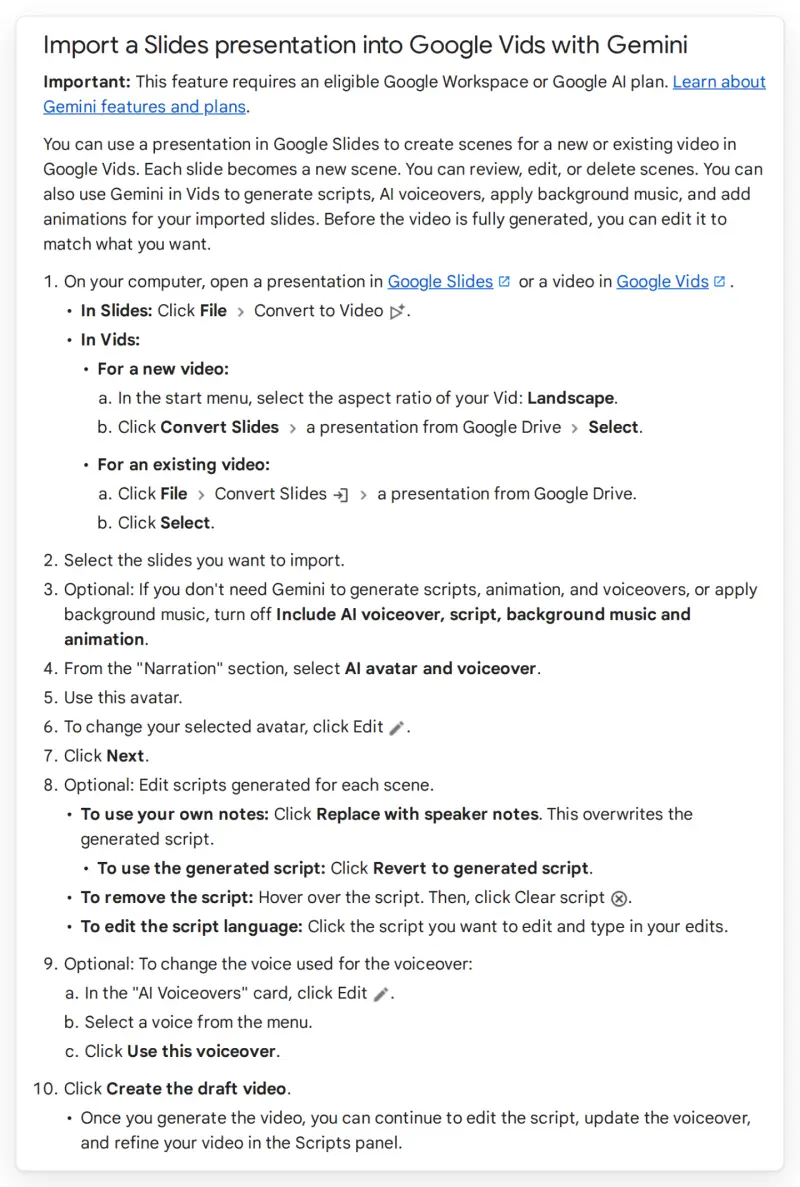
- In Slides, select File > Convert to Video and choose which pages to bring across.
- Leave Include AI voiceover, script, background music and animation enabled for a narrated video, or turn it off to create plain scenes.
- Under Narration, select an AI voice or avatar if desired, then click Next.
- On the script screen, use Replace with speaker notes to make the notes the script. You can also edit each scene’s narration directly.
- Choose a voice and select Create the draft video. Continue revising in the Scripts panel.
The key editorial choice is whether to let Gemini draft narration or use notes that have already been written for speaking. Gemini creates a script by default from slide content and notes. Replacing that draft with notes makes those notes the spoken script; returning to the generated version is also possible. If the notes contain only a few words, the resulting narration may be just as sparse.
Deck size and timing can constrain the result. With AI features enabled, Vids accepts up to 45 slides; without them, it accepts up to 100. Google describes a 10-minute generation limit. Word art and embedded video files don’t carry over. Scene duration follows the voiceover, or defaults to five seconds when there is no narration. Gemini supports conversion in English, French, German, Italian, Japanese, Korean, Portuguese and Spanish.
Access varies by account. Google’s Vids plan information lists AI voiceover conversion from Slides as unlimited on Google AI Pro and many Workspace plans. For personal Google accounts, a conversion with AI voiceovers costs five credits from a monthly allowance of 50. On work and school accounts, an administrator controls access.
When the draft is ready, use File > Download as MP4 to save a video file, or follow Google’s instructions to export to Drive or YouTube. Vids is an efficient option when the deck already contains a spoken explanation. It can’t make minimal notes carry the detail that was never written down.
Build a new lesson from a PDF
Scrimba Explain creates a narrated lesson from uploaded material, using new slides and diagrams rather than showing the original deck as a recording. Its documentation describes an explainer as a generated lesson, and its supported document list includes PDFs. It doesn’t document a direct Google Slides or PowerPoint upload, so prepare a PDF first.
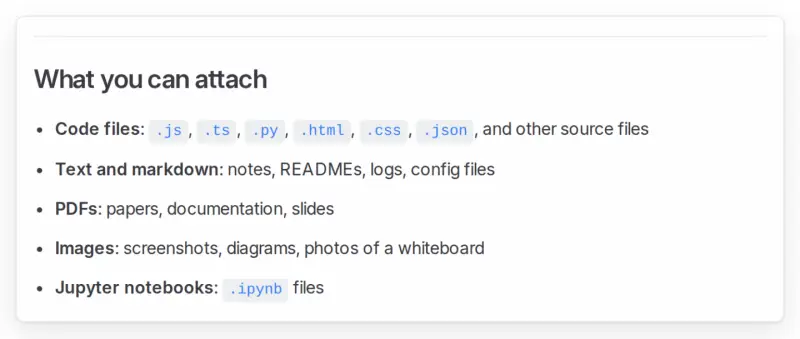
- Print the deck with its notes. A standard PDF download omits them. In Slides, choose File > Print settings and preview, set the layout to 1 slide with notes, click Print and save the file as a PDF. Google’s printing steps explain the setting.
- Check that the PDF contains selectable text. Try highlighting a sentence. If you can’t select it, the page may be an image rather than searchable text.
- Remove material that depends on being in the room. Agendas, section dividers and closing slides may not help a standalone lesson.
- Upload the PDF at scrimba.com/explain. A new explainer made while signed in starts as Public and appears in the community. Choose Unlisted or Private before using class, training or client material. Without an account, one explainer can be kept; a free account keeps five.
- Break up long decks. Scrimba doesn’t document a length limit. Make separate explainers for sections or create a playlist of lessons, which counts as one explainer, instead of assuming an entire long deck will work well as one video.
A clear request can help the explainer focus on teaching rather than reciting bullets. For example:
Attached: my Google Slides deck as a PDF, one slide per page with speaker notes.
Audience: Year 10 students who missed the lesson.
Explain why each step matters; do not read the bullets back.
Where a note and a slide disagree, follow the note.
Use a diagram where the slide has a process. End with a quiz.
There’s also a route through ChatGPT. After installing the plugin in a signed-in session, attach the PDF and mention @Explain Video Generator. The response includes an explainer card, and Watch explainer opens it on Scrimba. The default video is square unless you request another format. ChatGPT’s model writes the lesson, so it doesn’t offer a depth setting.
ChatGPT can generate as many explainers as you like. If you connect a Scrimba account, each explainer is saved and counts as it’s created, as described in the ChatGPT documentation. Before attaching a school or company deck, review the plugin listing’s data notice. It says relevant chats and memories may be shared with the app to provide context.
Write notes that support learning
Notes affect every route, but in different ways. Vids can read them as narration after you replace its draft. Synthesia’s PowerPoint import can use notes to script scenes, and Explain uses them as material for a new lesson. Notes written for a presenter may need work before they can serve as a clear, standalone narration.
Cynthia Brame’s 2016 review of effective educational video argues for narration that complements what learners see. Reading every bullet aloud can duplicate the visual information without explaining its meaning. Brame’s review also recommends removing material that doesn’t support the learning goal. In practice, notes can give each slide four useful elements:
- The main point: one sentence stating what learners should remember.
- The reason: explain why the point matters, what causes it or what could go wrong.
- The evidence: include the relevant example, date or number and identify where it came from.
- Clear terminology: spell out an acronym the first time it appears.
This structure gives an AI script writer more to work with and helps a human presenter keep the recording focused. It also gives educators a simple way to check whether the deck can stand on its own for students who missed the session.
Review the video before sharing it
AI generated narration and visuals can misrepresent the source material. Review the video against the deck, scene by scene, and check for incorrect names, numbers or dates; missing or reordered slides; diagrams that change a process; and claims that go beyond the notes.
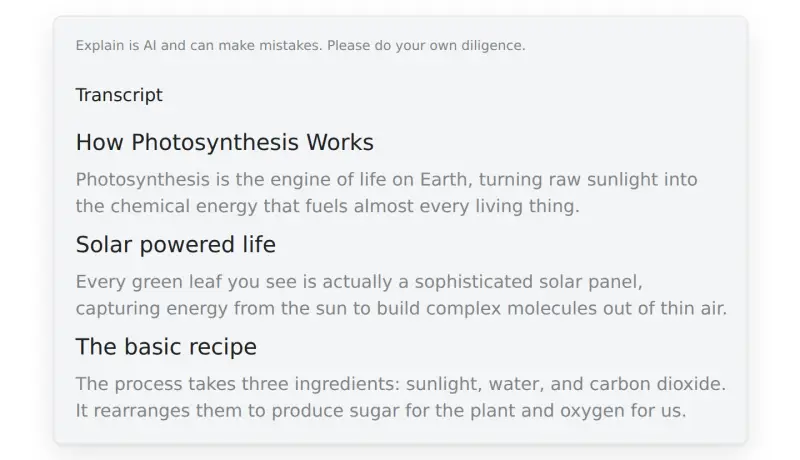
In Vids, edit the script in the Scripts panel. In Explain, the full narration appears below the player under Transcript, so it can be compared with the notes. Scrimba cautions that “Explain is AI and can make mistakes.”
Explain lets users request changes in the edit box beneath the player. Its editing guidance allows three edits per explainer on a free account. Pro users can download an MP4 at 1080p by default, along with a .vtt subtitle file. The explainer needs to be Public or Unlisted to export. Because an edit retires saved versions, finish revisions before downloading the final file.
Plan for commercial courses and other formats
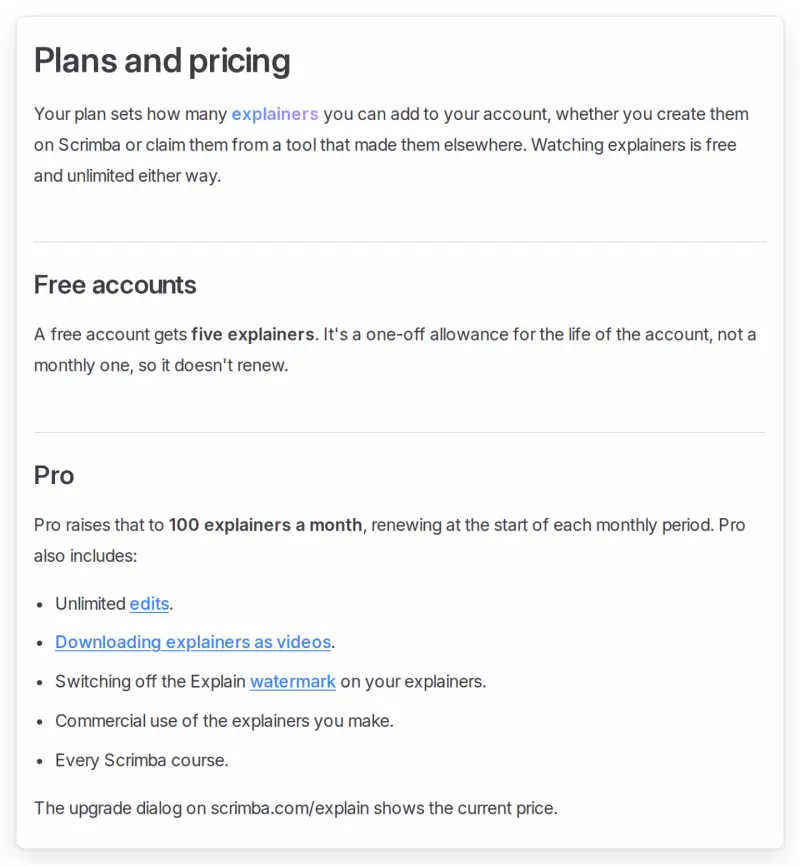
Scrimba’s plans information lists commercial use under Pro, alongside 100 explainers a month, MP4 downloads, unlimited edits and the option to remove the watermark, which is on by default. A free account keeps five explainers for life. Anyone building a course for sale should check the current plan details before relying on Explain for production.
Other formats may fit better when the teaching goal calls for them. Rec or Vids can preserve the deck’s original design; Explain replaces it with newly generated slides. If a course needs the same AI presenter in each module, download a PowerPoint copy and import it into an avatar tool. HeyGen accepts PPT, PPTX or PDF files up to 50 MB, and uses speaker notes as the script only for PowerPoint files, according to its import guidance. Synthesia supports up to 150 slides, while HeyGen uses the first 50.
For a lesson about software clicks, recording the actual screen shows learners the interface they need to use. For multilingual material, Vids supports eight conversion languages and Explain narrates in 33. Explain doesn’t offer avatars, SCORM or completion tracking, so courses that depend on those features may need another production route.
Frequently asked questions
Can Google Slides become a video?
Yes. Record a presentation with Rec, use File > Convert to Video to open the deck in Google Vids, or print the slides with notes to PDF and create a narrated explainer from that file.
How do I save a Slides presentation as an MP4?
Convert it to a video in Google Vids, then choose File > Download as MP4. Rec saves its recording to Drive. Scrimba Explain offers MP4 downloads on Pro, at 1080p by default.
Can Google Slides generate voiceover?
Slides itself doesn’t add the voiceover. Google Vids can generate an AI narration, or read your speaker notes after you select Replace with speaker notes. Explain creates a new script from the deck rather than simply reading it.
Does Google Vids cost credits on a personal account?
Google’s plan information lists 50 monthly credits for personal accounts and a five-credit cost for each Slides conversion with AI voiceovers. Google AI Pro and many Workspace plans list the feature as unlimited. Basic Vids is available with a Google account.
Will Vids use my speaker notes automatically?
Gemini generates a script by default using the slide content and notes. Select Replace with speaker notes to use the notes as the full script. Notes written in complete sentences are better suited to voiceover than brief prompts.
Can Explain open a Google Slides presentation?
No direct Slides or PowerPoint upload is documented. Print the deck using the 1 slide with notes layout, save it as a PDF, and upload that file to Scrimba Explain or attach it in ChatGPT with the Explain Video Generator plugin. Check that the text can be selected in the PDF.
How long can the video be?
Rec recordings stop at 30 minutes. Google Vids has a 10-minute generation limit and supports up to 45 slides when AI is enabled. Explain has no documented length limit; for long decks, consider separate lessons or a playlist, then review each result.
Can I sell a course made with Explain?
Scrimba’s plan information lists commercial use under Pro, along with MP4 downloads and the option to remove the watermark. Review every scene before sharing because AI narration and diagrams may contain errors.
The practical starting point is to decide whether the narration should present, read or teach. Then write notes for that job, check access and format limits, and review the finished video against the slides before learners rely on it.