Turn a One-Pager into a Customer Explainer Video: A Practical Workflow
Build a narrated product walkthrough from a PDF and screenshots, then check its claims and choose the right way to share it.
A product explainer can handle the part of a sales conversation that introduces how a product works. It can’t decide whether the product fits a buyer’s needs. That distinction makes a short, accurate walkthrough useful: customers can learn at their own pace, while a live conversation can focus on their questions and circumstances.
Scrimba Explain turns a one-page document and product screenshots into narrated slides, including a diagram of how the product works. The basic workflow is straightforward: save the one-pager as a PDF, add three to five recent screenshots, and describe the intended viewer in a sentence. Then review the narration, correct errors and share the finished explainer as a link or an embed.
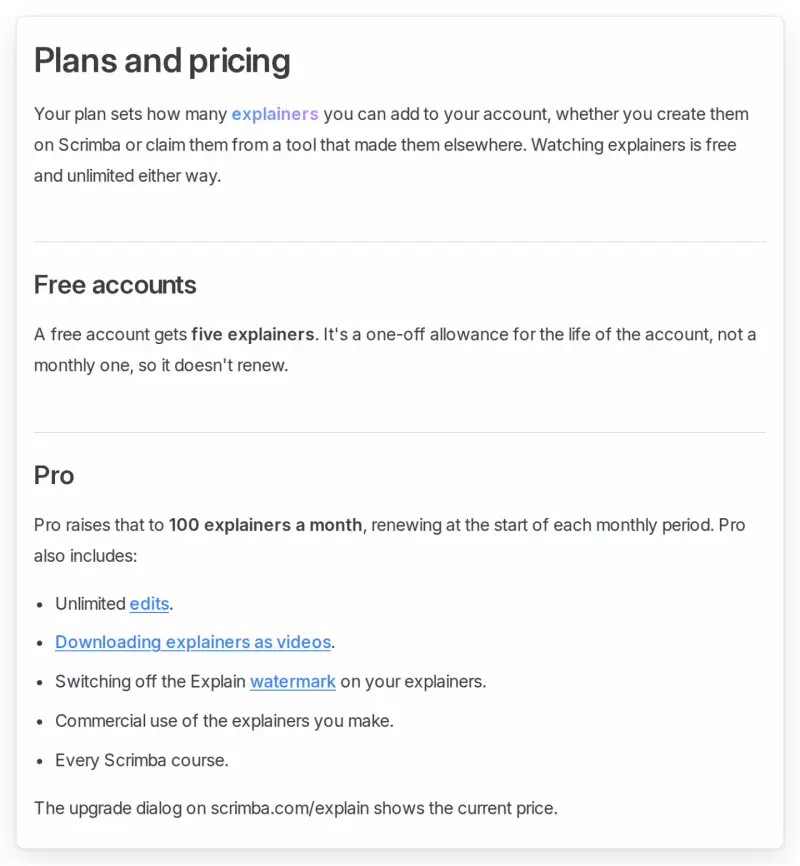
That format suits teams whose product is changing too quickly for a stable screen recording. It also sets limits: Explain uses submitted screenshots rather than recording someone operating the live product, and its documentation lists commercial use under Pro. A free account is useful for trying the process with a draft; its limits include five explainers for the life of the account, three edits per explainer and no video download.
Use the video to prepare for a conversation
A narrated explainer can give buyers general information before a meeting. It shouldn’t be treated as a substitute for discussing whether the product matches their organization’s needs.
Gartner surveyed 632 B2B buyers in August and September 2024. In a survey published in 2025, 61% said they preferred an overall buying experience without a sales representative. The distinction in Gartner’s findings is useful for teams deciding what to put in a video: buyers favored self-service for general information and learning, while they preferred seller input when judging whether a product or service suited their company.
There’s a practical reason to build the video from the same one-pager used on a website and in sales conversations. The Gartner survey also found that 69% of buyers saw inconsistencies between a company’s website and its sellers’ statements. A shared set of product claims can help keep those explanations aligned. Gartner surveyed B2B buyers generally, so its findings offer direction rather than a forecast for any particular startup or product.
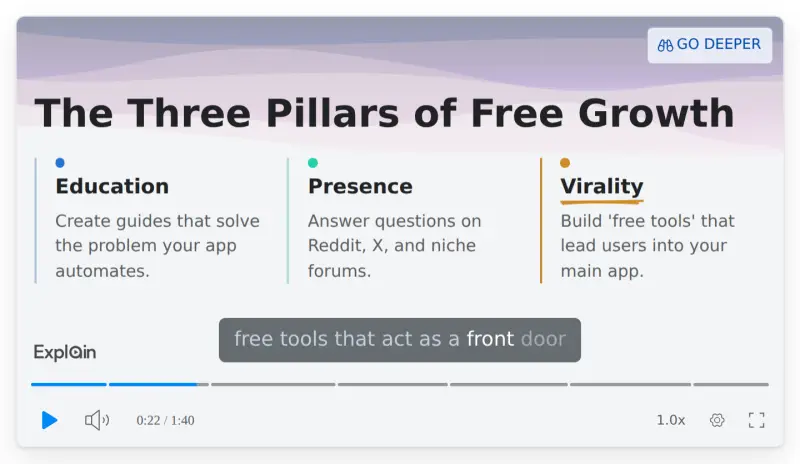
The useful division of labor is clear: let the video explain the product’s purpose and basic operation, then use a call to address fit, concerns and questions that depend on the buyer’s situation.
Choose a format based on what customers need to see
The deciding question is whether a customer needs an explanation, a live product recording, a click-through demonstration or a presenter. Those formats start from different materials and suit different stages of product development.
| Format and tool | What viewers see | Starting material | Free plan details | Paid plan details |
|---|---|---|---|---|
| Narrated explainer: Scrimba Explain | Narration, explanatory slides, a product diagram and submitted screenshots | One-pager PDF and screenshots | Five explainers for the life of the account, three edits each, no download and a watermark | Pro lists 100 explainers a month, commercial use, downloads and the option to switch off the watermark |
| Recorded demo: Loom | A person using the live product | A working product and a place to record | 25 videos, recordings up to five minutes, no downloads | Business is listed at $18 per user per month |
| Interactive demo: Arcade | A click-through of product screens | A working product to capture | One published demo | Growth is listed at $50 per seat per month, with calls to action, forms and MP4 export |
| Interactive demo: Supademo | A guided click-through | A working product to capture | Five guided demos and one creator | Scale is listed at $50 per creator monthly, or $38 when billed yearly |
| AI product video: Arcade | A narrated product video with brand styling | A prompt, screenshots or call notes | 250 one-time credits; videos up to 30 seconds include a watermark | Pro is listed at $59 for 1,000 credits |
| Avatar video: HeyGen | A virtual presenter reading a script | A script | Three watermarked videos a month, up to one minute each | Creator is listed at $29 |
For an early product, the required starting material may settle the choice. A recording or click-through needs a working product that can be captured. Explain, Arcade’s AI video and HeyGen can start from documents, screenshots, notes or a script. Explain is built to show a product concept through narration, diagrams and supplied screens; it doesn’t record the product in action.
These plan details are drawn from the vendors’ pricing pages and product listings, which can change. Check the current terms before choosing a service or preparing customer-facing material.
Prepare the content before opening the video tool
A concise source document gives the explainer a better chance of staying focused. Scrimba’s documentation says Explain accepts PDFs such as papers, documentation and slides, as well as image files including screenshots, diagrams and whiteboard photos.
- Save the one-pager as a PDF. In Google Docs, use File, then Download, and select a file type. A one-pager created in presentation software can also serve as the starting document.
- Capture three to five current screenshots. Use a demo workspace with sample data. Remove browser tabs and notifications from the images, and don’t expose a real customer’s account.
- Arrange the story in four beats. Start with the customer’s problem, explain how the product works, identify who it serves and what changes for them, then give a next step such as starting a trial, replying or scheduling a conversation.
- Remove internal details. Check for internal pricing notes, unreleased plans and other customers’ names before attaching the file.
Four beats and a small set of screenshots give the narration room to explain each point without turning the video into a presentation of every feature.
Write the prompt for a specific audience
Scrimba’s prompting guidance recommends naming the topic, the audience and what that audience already knows, along with the types of slides that should carry the explanation. For a customer walkthrough, the audience description is especially useful: it gives the tool a defined viewer to address.
A prompt could say: “Make a two-minute explainer for operations managers at small logistics companies who have never seen our product. Use the attached one-pager. Start with the problem they have today, show how the product works as one diagram, walk through the three attached screenshots in order, and end with how to start a trial.”
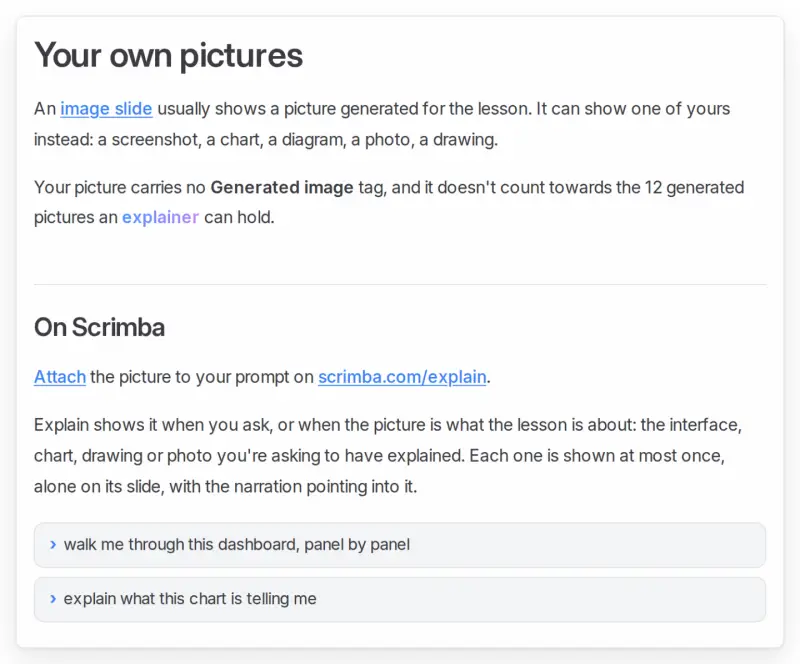
Explain shows each attached picture by itself on a slide, with narration that points to parts of the image. The supplied pictures don’t receive a “Generated image” label. Teams can also include a webpage address in the prompt: Explain says it opens the page and builds from the information it finds there, and reports when it can’t access it.
Create the explainer and set its visibility
Explain can be used on Scrimba’s site or through its ChatGPT listing. Both routes produce the same type of walkthrough, so the choice can depend on where the team prepared its materials.
On Scrimba
- Sign in and set visibility to Unlisted before creating the video. Scrimba says the visibility selector starts at Public for a signed-in user. Public explainers can appear in the community, so change the setting before submitting customer material.
- Attach the PDF and screenshots, then enter the audience-focused prompt.
- Choose the frame and presentation mode. The composer starts with a wide video unless “Make for mobile” is selected. It also starts in course mode; switch off the playlist option for a single explainer. Wide framing suits a website, while portrait framing can work better when the viewer opens a link on a phone.
In ChatGPT
Install the Explain Video Generator plugin in a signed-in session, then mention it, attach the PDF and screenshots, and describe the walkthrough. The plugin returns an explainer card in the chat; “Watch explainer” opens it on Scrimba. The default frame is square, though the prompt can ask for wide or vertical video.
Connecting a Scrimba account saves each explainer to that account as it is created. It stays unlisted and counts toward the account’s plan. Images uploaded from the ChatGPT mobile app can’t be fetched for this workflow, so attach screenshots from a desktop session.
The plugin listing says ChatGPT may share relevant chats and memories with the app to provide context. Keep customer information and sensitive business details out of the conversation.
Review every claim before sharing
Explain warns that its output can contain mistakes. Its player includes the full narration in a Transcript section, giving reviewers a practical way to compare the video with the approved one-pager.
- Prices and plan details: Confirm they match current, approved product information, or remove them.
- Features and integrations: Cut any feature that remains planned but hasn’t shipped.
- Outcome claims: Treat statements such as “saves you hours every week” as claims that need evidence the team can explain to a customer.
To revise a slide, enter a request in the box under the player and submit it. The edit function can rewrite, add, remove or reorder slides. Free accounts have three edits per explainer, so use those revisions carefully. Scrimba also says editing retires previously saved versions; finish the changes before downloading a final copy.
Share, embed or download
The player menu offers a standard link, a fullscreen link and embed code. A fullscreen link opens the player on its own, which can make it suitable for an email. Embedded explainers can be watched without a Scrimba account if they’re public or unlisted. The embed contains the player but not the transcript or AI warning, so add a short explanation alongside it.
Downloading an explainer requires Pro. Scrimba’s documentation says the default download renders at 1080p and 60 frames per second, for an explainer the account owner has set to Public or Unlisted.
The player tracks views and likes, but Scrimba’s documentation doesn’t describe built-in call-to-action buttons or lead forms. Put a booking link or other next step beside the video. Explain supports narration in 33 languages, including Spanish voices for Spain, Mexico and Argentina. Since using Translate changes the existing explainer’s language, create a second explainer to keep the original version too. Have a fluent speaker review the translated narration before customers see it.
Check the account plan before sharing. Commercial use is listed under Pro, which also allows users to switch off the Explain watermark. The free plan is suited to testing a draft rather than presenting a finished explainer to customers.
When another demo format is a better fit
- Use a recorded demo when buyers need to watch a person work in the live product. Loom records a screen and camera. Its listed Starter plan allows 25 videos of up to five minutes; downloads are available on Business, listed at $18 per user monthly.
- Use an interactive demo when buyers need to click through screens. Arcade’s free plan includes one published demo. Its Growth plan is listed at $50 per seat monthly and includes demo calls to action, forms and MP4 exports. Supademo’s free plan includes five guided demos for one creator.
- Use an avatar when the format calls for a presenter. HeyGen’s free plan lists three watermarked videos per month, each up to a minute. Explain doesn’t include avatars.
- Use a brand video when the brief calls for music, motion graphics and a logo across the frames. Explain doesn’t have a brand kit; an AI video tool, editor or production team may suit that work better.
The format can change as the product matures. A team whose product is updated every sprint may begin with a document-based explainer, then add release videos or screen recordings once the product settles. For customer support, the same principle applies: match the material and format to what the viewer needs to understand.
A one-pager and a few current screenshots can produce a useful first explanation, provided the team treats the generated narration as a draft. Keep the video focused on how the product works, verify its claims, and save the buyer-specific questions for a conversation.